

On stage
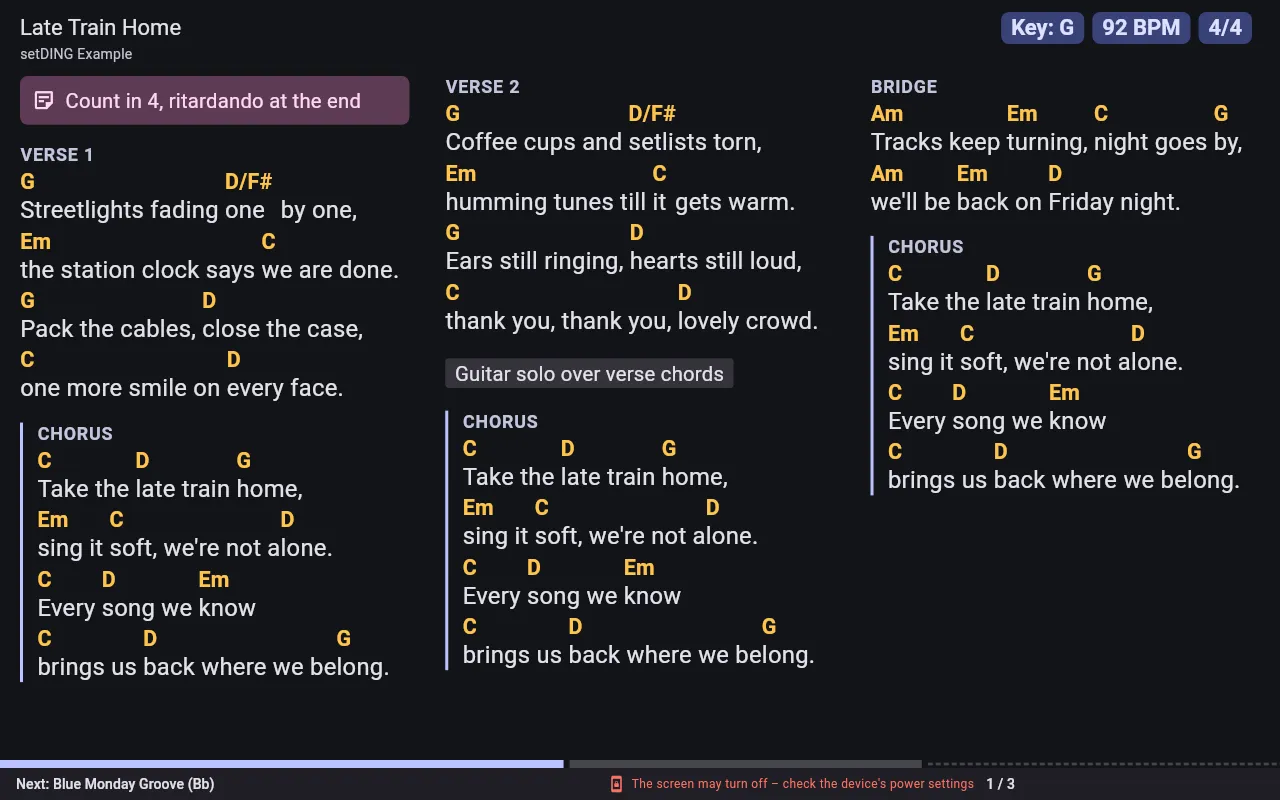
Live mode shows a song in full screen, as large as possible, and turns pages with a tap, a swipe or a foot pedal. The screen stays on while live mode is open.
Start live mode
Section titled “Start live mode”- A set: open the set and tap Live at the top right. You go through all the songs, breaks and texts of the set.
- A single song: open the song and tap Live at the top right.
The coloured Live button is always at the far right of the title bar, set apart from the other buttons. On a phone it shows only the play icon.
Leave it with Exit live mode in the control bar or the Escape key.
Turn pages
Section titled “Turn pages”| Forward | Back |
|---|---|
| Tap the right third of the screen | Tap the left third |
| Swipe left | Swipe right |
| Right arrow, down arrow, Page Down, Space | Left arrow, up arrow, Page Up |
setDING fits every song to the screen: the sections are arranged in columns and the text is as large as possible. A long song is split into several pages; “forward” turns through the pages of the song first, then to the next item of the set. The bottom bar shows where you are, e.g. Page 1/2, and which song comes next.
With a foot pedal
Section titled “With a foot pedal”Bluetooth page turners (foot pedals) connect to the device as a keyboard. Pair the pedal in your device’s Bluetooth settings; setDING understands the keys above without further setup. One press turns exactly once, even if you hold the pedal down.
The control bar
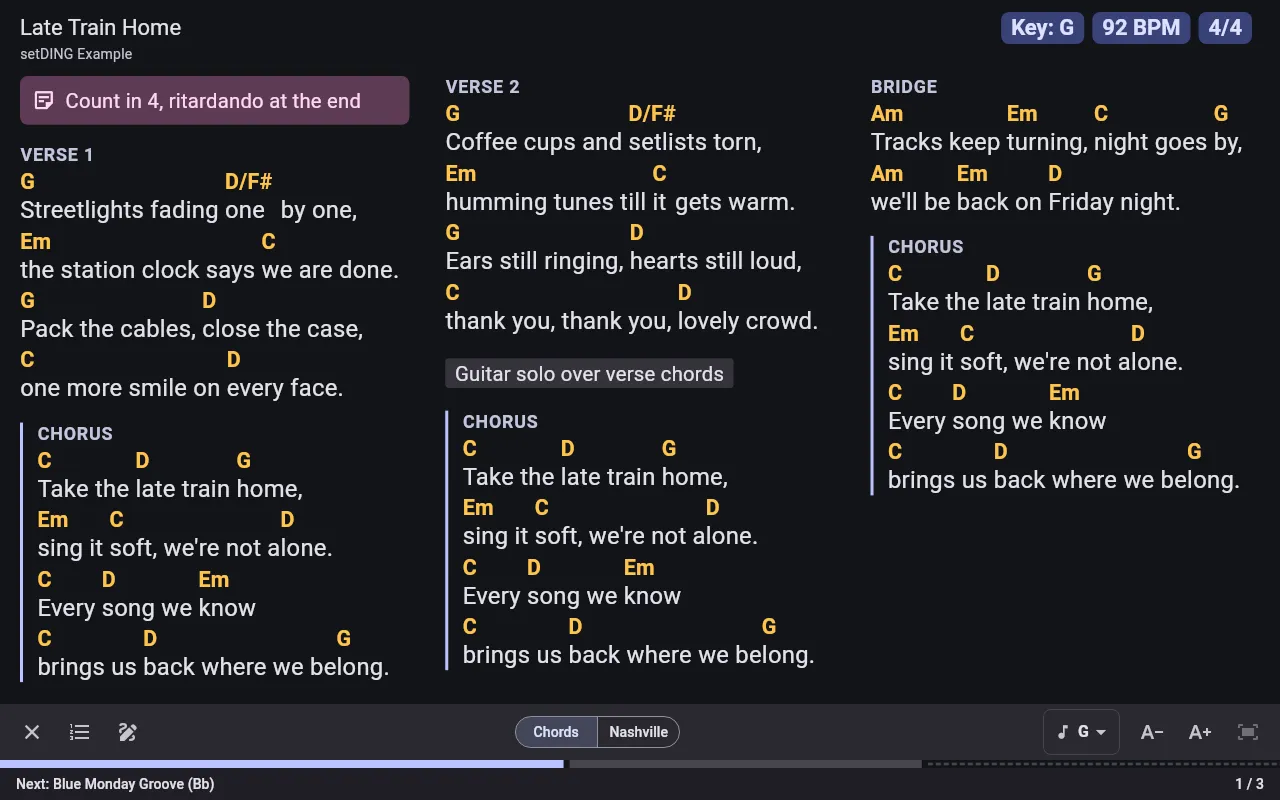
Section titled “The control bar”Tap the middle of the screen to show or hide the control bar:
- Exit live mode
- Set overview – all items of the set; tap one to jump straight to it, e.g. when you change the order on the spot.
- Key – in a set, the key of this set for the whole band (Key in this set – for the whole band); for a single song only your own (My key – just for me).
- Smaller text and Larger text – for you and this song.
- Fit to page – fits the song to the screen again.
- Chords / Nashville – shows the chords as names or as Nashville numbers. The song needs a key for this.
What else you see
Section titled “What else you see”- Song header: the title, the key as you play it tonight, capo, tempo and time signature. If a song sequence applies, setDING shows only its parts and names the hidden ones.
- Progress bar: a thin bar above the bottom bar shows the songs of the set and the pages of the current song, easy to see from the corner of your eye. Breaks and texts are dashed.
- Breaks and texts get a page of their own in large type.
- PDF sheet music is turned with the same gestures, page by page.
Changes that arrive from the server during the gig are applied only when you leave live mode, so nothing changes unexpectedly on stage.
Every band member turns the pages on their own device; the devices are not linked.
Tips for the gig
Section titled “Tips for the gig”- Check beforehand that the set says Offline ready (see Offline ready).
- Plug the tablet into its charger. setDING keeps the screen on, but not the battery full. If The screen may turn off – check the device’s power settings appears, set a longer screen timeout on the device.
- Android’s screen pinning keeps you from leaving the app by accident.
- In Settings → Screen & live mode you set the font size, columns, half-page turns and the appearance on stage, e.g. Black for OLED screens.