

Song display
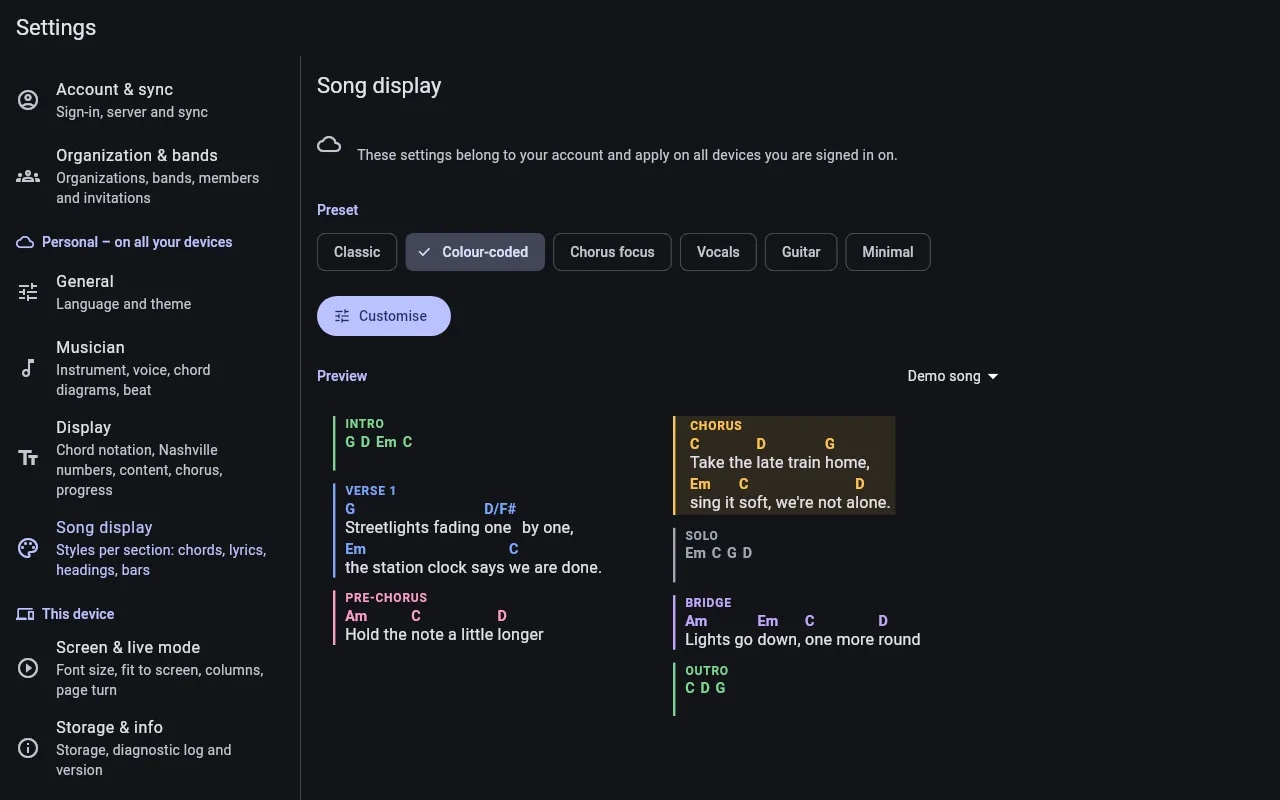
Under Settings → Song display you choose how the sections of a song look in live mode and in the song view: for example the chorus bold with a wide bar, the bridge in italics or the chords of the solo in amber. The setting is personal and applies on all your devices. The song itself stays unchanged for everybody, and the preview in the editor always shows it without your styles.
Presets
Section titled “Presets”Here you pick a preset; the preview below shows a song in the look of your stage:
- Classic – as before: bold chords, a thin bar next to the chorus.
- Colour-coded – every section has its colour for bar, heading and chords.
- Chorus focus – the chorus bold, with a wide bar and a tinted background; the bridge in italics.
- Vocals – the lyrics in front, chords small and grey.
- Guitar – large chords, the lyrics toned down; bridge and solo stand out.
- Minimal – no bars, only the heading of the chorus.
As soon as you change something it becomes Custom. If you pick a preset again afterwards, setDING asks whether to discard your custom styles.
Customise
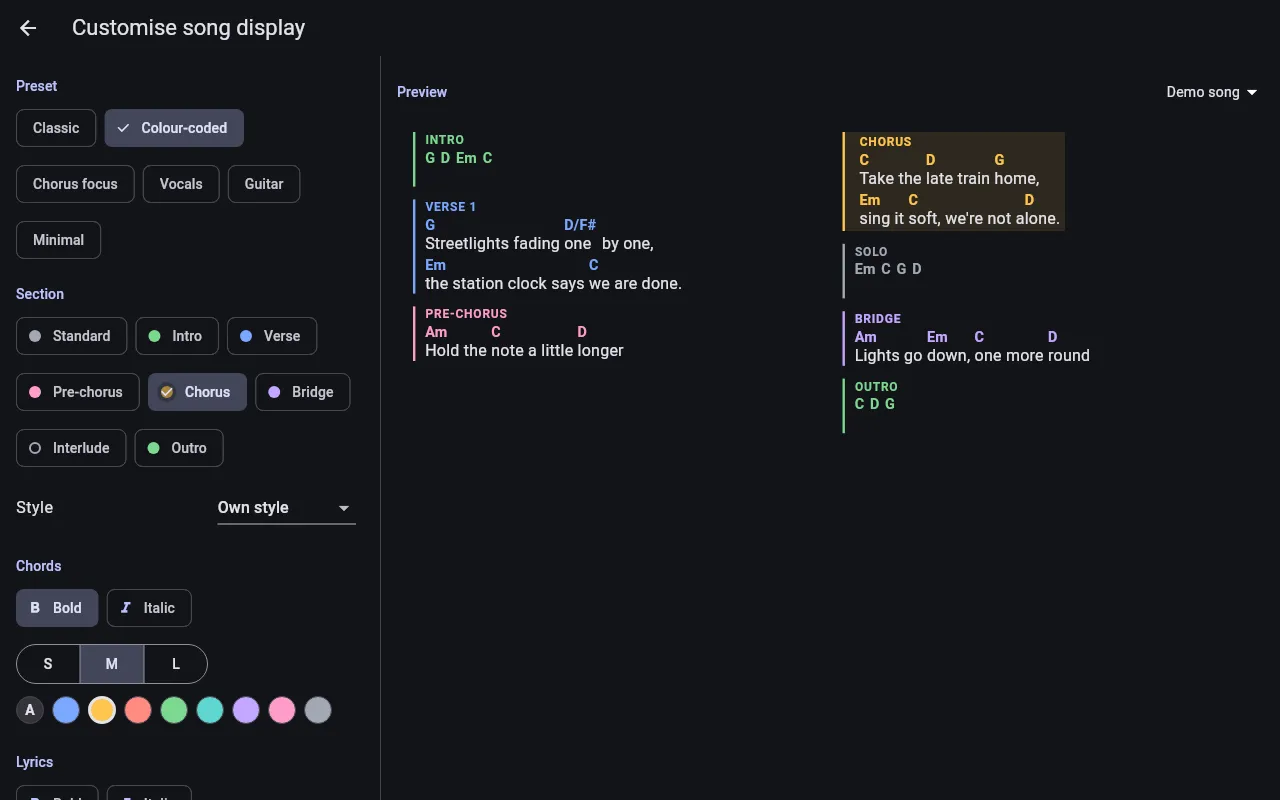
Section titled “Customise”Customise opens the editor. On a tablet the settings are on the left and the preview stays next to them; on a phone the preview is pinned on top, and you drag the handle below it to make it larger or smaller. When you pick a section, the preview jumps to it.
At the top right of the preview you choose the song: the demo song, which has every section once, or a song from the library. The choice applies to this device only.
Sections
Section titled “Sections”setDING recognises the sections by their name, from {start_of_…} or from a
heading written as a comment such as {c: Solo} (see
ChordPro):
| Section | Recognised from |
|---|---|
| Intro | Intro |
| Verse | Verse, Vers, Strophe |
| Pre-chorus | Pre-Chorus, Pre-Refrain |
| Chorus | Chorus, Refrain |
| Bridge | Bridge |
| Interlude | Interlude, Instrumental, Zwischenspiel, Solo, Turnaround, Vamp |
| Outro | Outro, Ending, Schluss, Coda, Tag |
Standard is the base style: it applies to every section without its own style and to everything that is not recognised, e.g. tabs, chord grids or custom names.
Own style or take it over
Section titled “Own style or take it over”Every section either has its own style or takes over the style of another section (Like …). So you can set up just the interlude, and intro and outro look the same. At the start, intro and outro take over the interlude, the pre-chorus the verse and all others the standard. A ring instead of a dot in the list of sections shows that a section takes over its style.
A section cannot take over from a section that already takes over from it; such entries are greyed out.
What you can set
Section titled “What you can set”- Chords – bold, italic, size (S, M, L) and colour.
- Lyrics – bold, italic and colour.
- Heading – shown or not, bold, italic, size (S, M, L, XL) and colour.
- Indent bar – shown or not, width and colour; plus the indent and a tinted background.
The colours come from a fixed palette that stays readable on light, dark and black backgrounds. Automatic (A) keeps the usual colour.
Formatting in the song
Section titled “Formatting in the song”Some songs bring their own formatting:
- A colour you choose explicitly wins over a colour from the song (e.g.
{chordcolour: red}). With Automatic, the song’s colour applies. - Sizes add up: large chords in your style and
{chordsize: 120%}in the song give even larger chords. - Emphasis in the text such as
<b>quietly!</b>always applies.