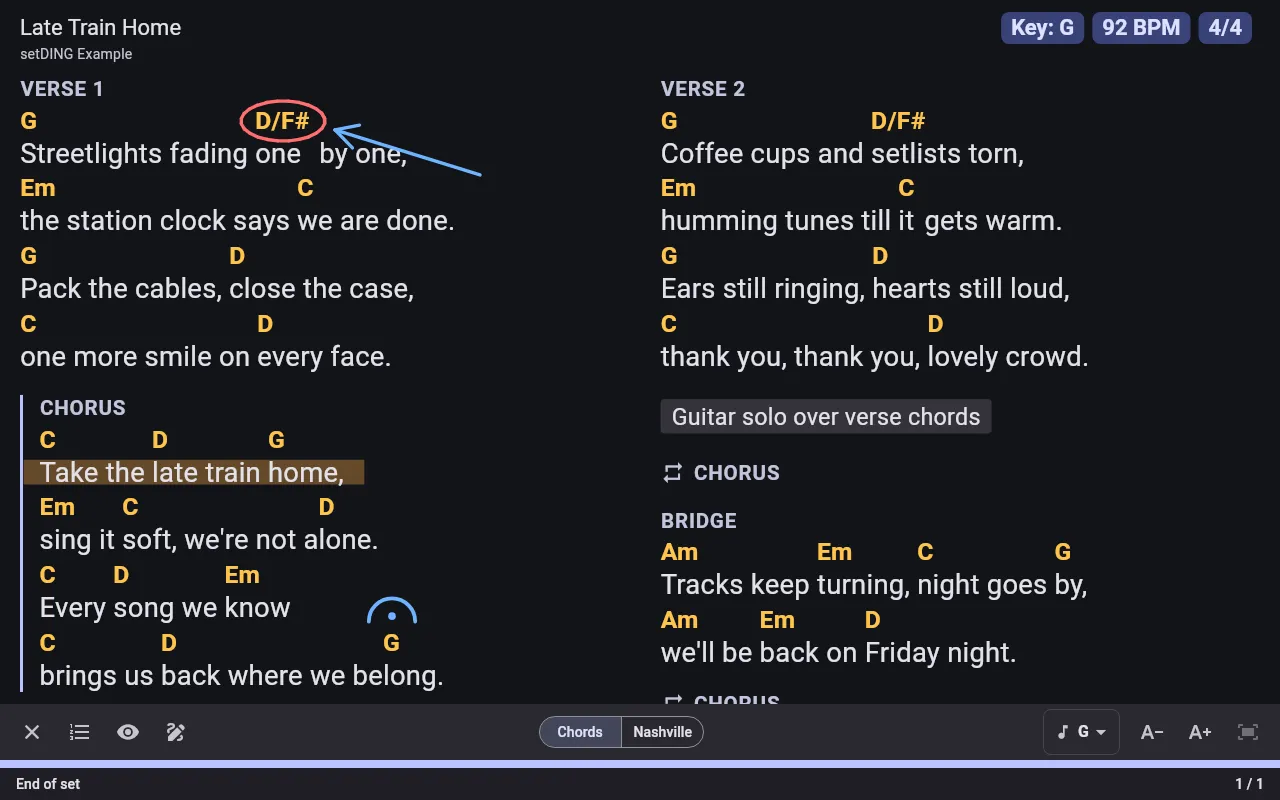

Freehand annotations
You can draw on songs and PDF sheet music in live mode: circle a chord, draw an arrow from the verse to the chorus, highlight a line or put a fermata where the band holds. Your annotations are yours alone – nobody else in the band sees them – and they are synced with your account to all your devices.
Start drawing
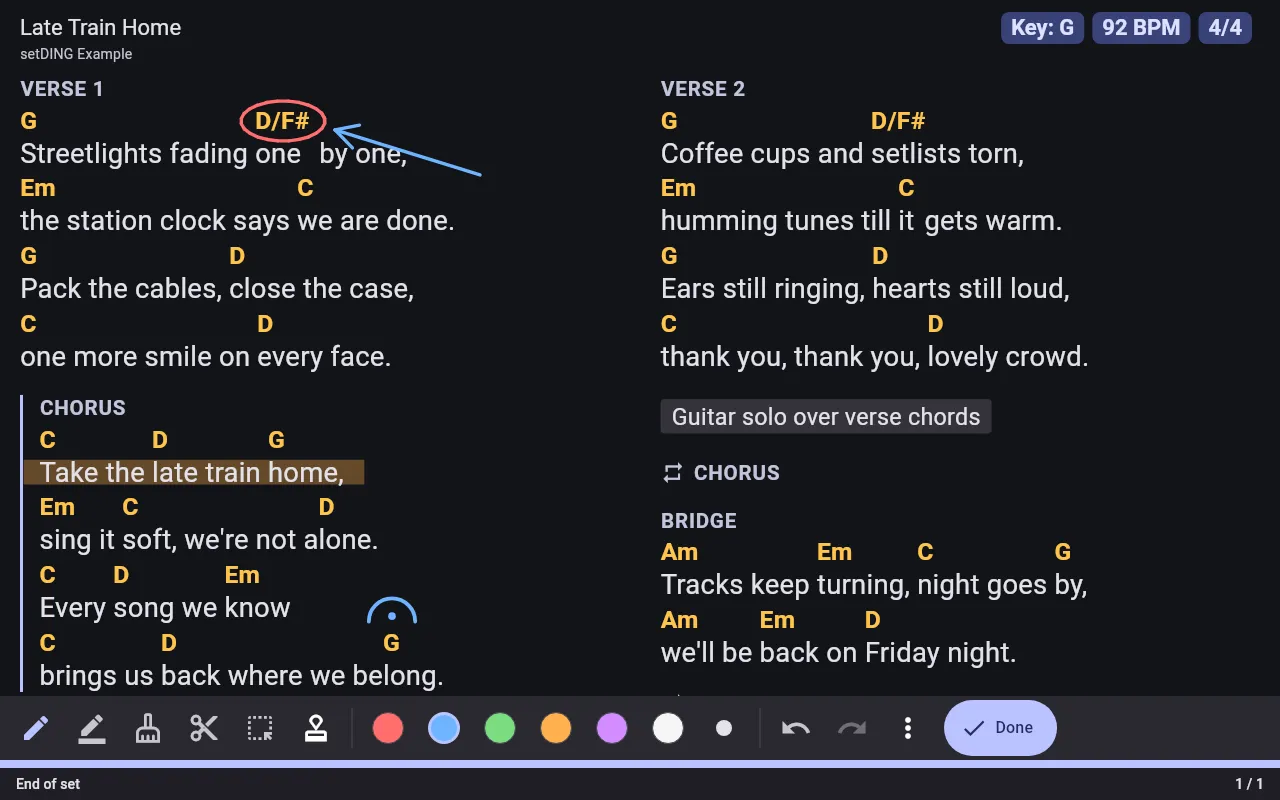
Section titled “Start drawing”Tap the middle of the screen to show the control bar and tap the pen (Draw annotations). The tools appear at the bottom of the screen. Done or the Escape key ends drawing mode.
- With a stylus only the stylus draws; your fingers keep turning pages and scrolling, so your palm on the screen does no harm.
- Without a stylus switch on Draw with finger in the toolbar’s menu (or in Settings → Screen & live mode). Fingers then draw instead of turning pages.
- The foot pedal and the keyboard keep turning pages while you draw.
- With a mouse (e.g. in the web client), the mouse draws.
The tools
Section titled “The tools”- Pen – a line; with a stylus it gets wider the harder you press.
- Highlighter – a translucent wide line behind the text.
- Eraser (whole stroke) – removes every stroke it touches. The back of a stylus erases too.
- Eraser (part of a stroke) – cuts away only what it touches.
- Select (lasso) – draw around strokes to select them. Then drag them to another place, tap a colour to recolour them, or use Smaller, Larger and Delete selection.
- Stamps – tap to place a sign: music marks (fermata, breath mark, crescendo, decrescendo, ritardando, accent), repeats (×2, ×3, ×4, repeat signs, coda, segno) and cues (watch out, stop, look, important, star).
- Colour and Line width apply to new strokes and to the selection.
- Undo and Redo go back and forth through your changes since you started drawing.
The colours stay readable on the dark and black stage appearance: each colour has a lighter shade there.
Same view, exact place
Section titled “Same view, exact place”Annotations stay exactly where you drew them as long as the song looks the same – on the same device, in the same orientation, with the same text size and the same sequence. On another device, after turning the tablet or with a changed song, each stroke follows the line of the song it was drawn next to and grows or shrinks with the text. Free arrows then may no longer point exactly at their target; a hint in the top corner says that the annotations were drawn for another view (e.g. in landscape).
If a line was removed from the song, its annotations show faded while you draw, with a hint; move them with the lasso or delete them.
Annotations on PDF sheet music stay on their page and never move.
Each song (and each PDF) holds about 1 MB of annotations, which is thousands of strokes. From 80 % on, drawing mode shows how full it is; when it is full, new strokes are not kept until you erase some.
Show, hide and delete
Section titled “Show, hide and delete”- The eye in the control bar shows or hides all your annotations.
- In the song’s personal panel (the slider icon) you see how many annotations the song has, can hide them for this song only, or Delete all annotations of this song – with Undo for a few seconds.
- Settings → Display → Show freehand annotations switches them off everywhere.
The song screen shows your annotations too, next to their lines; you draw in live mode only.