

Beat, click and drums
If a song has a tempo, setDING shows the beat in live mode, counts in and, if you like, plays a click – into the in-ear mix, for example. The tempo comes from the band arrangement or the song, the time signature from the song (4/4 if none is given).
Everything is set in Settings → Musician → Beat and click. If your instrument is Drums, most of it is already on; everybody else switches on what they need.
Start and stop the beat
Section titled “Start and stop the beat”- Tap the tempo in the song’s header: Start the beat or Stop the beat.
- Hold the forward pedal or key for at least about half a second. A short press turns the page as always.
- Press Enter.
With Start → With each song, every song counts in by itself as soon as it appears in live mode. Turning to another item of the set always stops the beat; turning the pages of a song does not.
The settings
Section titled “The settings”- Beat display – dots next to the tempo and time signature light up on every beat, the 1 in another colour; the count-in shows large numbers.
- Flash the edge of the screen (drums only) – the edge flashes on every beat, visible from the corner of your eye.
- Click – plays the click on the device’s audio output. With Sound (Click, Woodblock, Beep), Accent on the 1 and Subdivisions (quieter eighths between the beats, triplets in 6/8).
- Count-in – Off, 1 bar or 2 bars.
- Duration – Whole song or Count-in only.
- In the background – Stop (default) or Keep playing: what the beat and the click do when you minimise the app, open another app or lock the screen. A stopped beat is started again by hand.
- Volume and Audio delay apply to this device only.
Measure the audio delay
Section titled “Measure the audio delay”Bluetooth headphones play the click a little later than setDING shows it. Tap Measure the audio delay, put on the headphones you wear on stage and tap along with every beat of the click. Apply shifts the display by the measured value.
Change the tempo on stage
Section titled “Change the tempo on stage”In the control bar (tap the middle of the screen) you change the tempo for the moment: Slower and Faster by 1 BPM each, or Tap tempo at the tempo you want. Back to the tempo of the song undoes the change. It applies only until you leave live mode; the song and the band arrangement stay unchanged.
Song map for drummers
Section titled “Song map for drummers”With the instrument Drums, you can switch on Song map instead of chords. Live mode then shows the parts of the song in its sequence instead of the chord sheet, each with a cue from the lyrics and the drum notes, plus the tempo and time signature in large type. The bottom bar names the tempo and time signature of the next song. On wide screens, a panel beside it shows the beat in large type and the whole set; tap a song to jump to it. On a phone you only see the beat and the set: one above the other in portrait, side by side in landscape. Pick the song in the list or turn from song to song with the pedal.
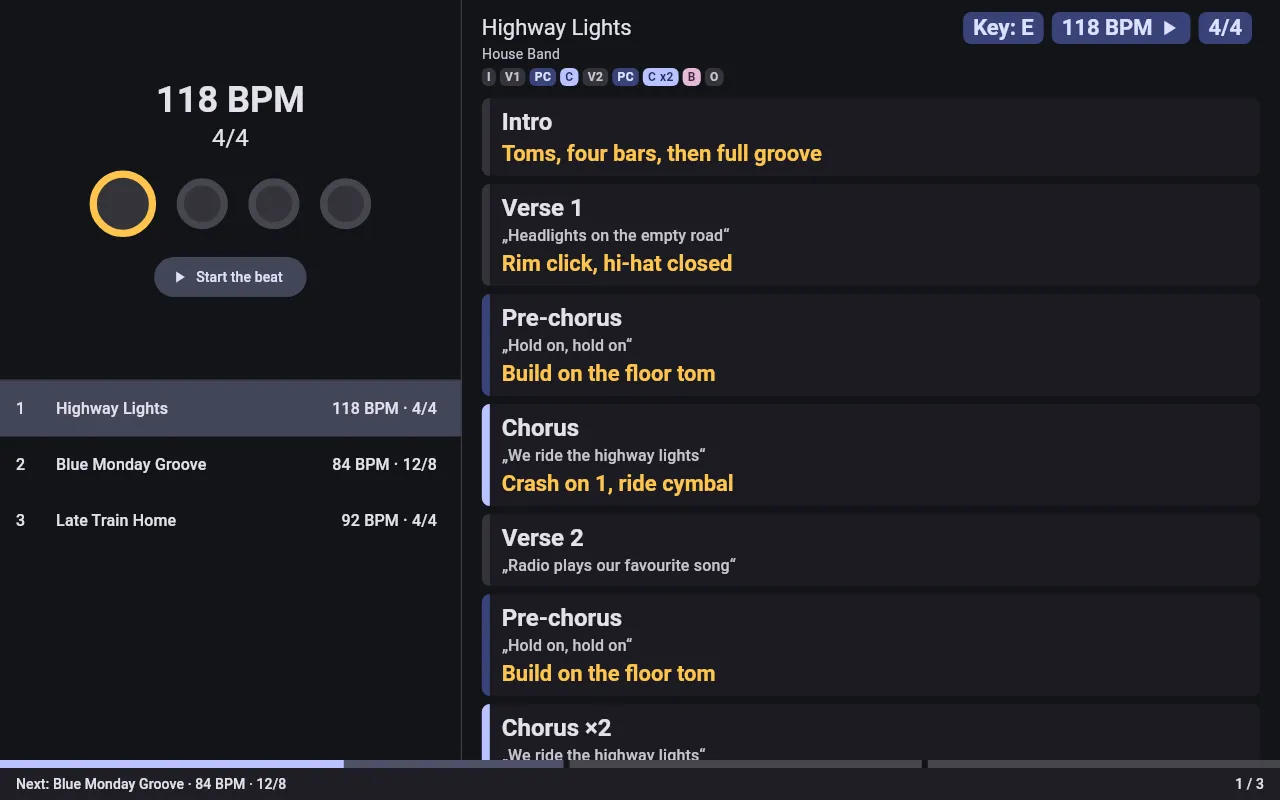
Drum notes are written in the song as sections or comments for drums only, e.g.
{comment-drums: half-open hi-hat}. Anyone with another instrument does not see
them.